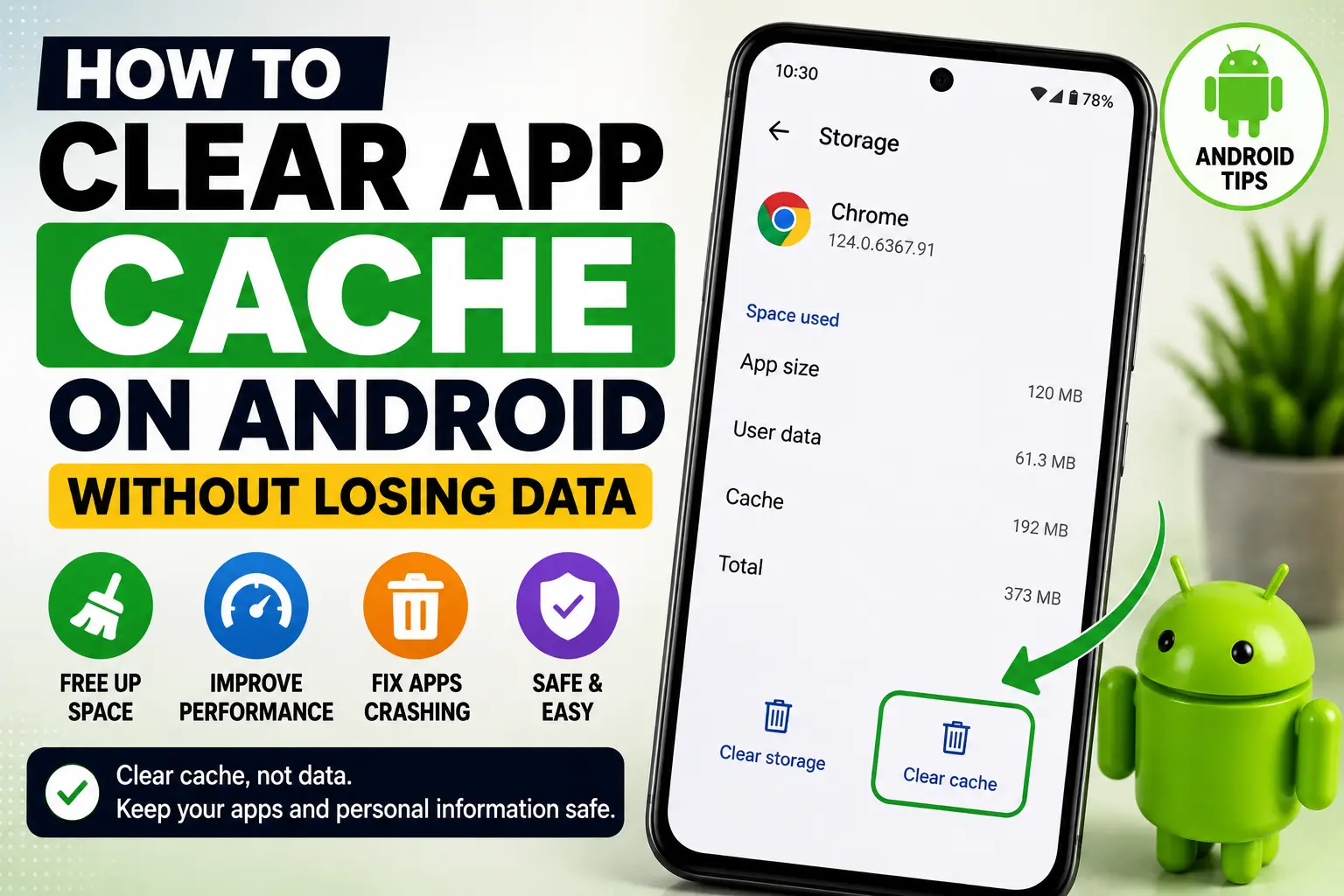
If an Android app is slow, freezing, crashing, or behaving strangely, clearing its cache is one of the simplest troubleshooting steps you can try.
The good news is that clearing an app’s cache normally doesn’t delete your personal files or account information. It removes temporary files that the app can recreate when needed.
However, Clear Cache and Clear Storage/Data are very different. Choosing the wrong option can reset an app, so it’s important to understand the difference before proceeding.
What Is App Cache on Android?
Android apps store temporary files so they don’t have to download or recreate the same information every time you use them. These temporary files are called cached data.
For example, an app may cache images, thumbnails, website elements, or other temporary resources to help content load more efficiently.
Usually this works in the background without causing any problems. Occasionally, however, outdated or corrupted cached files can contribute to an app loading slowly, freezing, or behaving incorrectly.
Does Clearing App Cache Delete Your Data?
Normally, no.
Clearing an app’s cache removes temporary cached files rather than the app’s main stored data. Your account and important app information should generally remain intact.
However, be careful not to select Clear Storage, Clear Data, or a similarly named option.
Those options are different and can reset the application, remove locally stored app information, and require you to sign in again.
How to Clear App Cache on Android
Menu names can vary slightly depending on your Android version and phone manufacturer.
On many Android phones:
- Open Settings.
- Tap Apps.
- Select the app you want to troubleshoot.
- Tap Storage & cache or Storage.
- Tap Clear cache.
- Reopen the app and check whether the problem has improved.
Samsung Galaxy, Google Pixel, Motorola, OnePlus, Xiaomi and other Android phones may use slightly different menu names.
The important thing is to select Clear cache, not Clear storage/data.
Clear Cache vs Clear Storage: What’s the Difference?
Understanding this difference can prevent accidental data loss.
Clear Cache
Clear Cache removes temporary files created by the application.
These files can be recreated automatically as you continue using the app.
This is generally the safer option to try first when troubleshooting an app.
Clear Storage or Clear Data
Clear Storage or Clear Data is much more significant.
It can remove locally stored application data and effectively return the app to a fresh state.
Depending on the application, you may need to:
- Sign in again
- Reconfigure settings
- Download offline content again
- Restore locally stored information
Therefore, don’t select Clear Storage/Data when your intention is simply to clear temporary cache files.
When Should You Clear an App’s Cache?
Clearing cache can be useful when one particular application:
- Opens unusually slowly
- Freezes frequently
- Crashes repeatedly
- Has temporary loading problems
- Displays outdated information
- Starts behaving incorrectly after an update
It should be treated as a troubleshooting step, not something you need to perform every day.
Will Clearing Cache Make Your Android Phone Faster?
It can help in certain situations, but don’t expect it to dramatically speed up every Android phone.
If corrupted cached data is causing a particular application to malfunction, clearing that app’s cache may improve its behavior.
However, if your entire Android phone is running slowly, the underlying cause could instead be low available storage, outdated software, problematic apps, excessive background activity, or aging hardware.
For broader troubleshooting, read our guide:
Android Phone Running Slow? 12 Ways to Make It Faster
Does Clearing Cache Free Up Storage?
Yes. Clearing cached files can temporarily free some storage space.
However, applications will create cache files again as you continue using them.
If your phone is seriously low on storage, also check for:
- Apps you no longer use
- Large videos
- Old downloads
- Offline movies or music
- Unnecessary documents
- Other large files
Clearing cache shouldn’t be treated as a replacement for proper storage management.
Should You Clear Cache for Every App?
Usually, no.
If an application is working normally and your phone has sufficient storage, there’s generally no reason to repeatedly clear its cache.
A better approach is:
Problematic app → Clear its cache → Test the app
This helps you troubleshoot a specific problem without unnecessarily changing other applications.
Can You Clear All App Cache at Once?
This depends on your Android version and phone manufacturer.
Many modern Android phones emphasize managing storage and cache on an app-by-app basis rather than providing one universal button for clearing every application’s cache.
Be cautious with third-party apps marketed as phone cleaners, RAM boosters, or one-tap speed boosters.
You generally don’t need another application simply to clear the cache of an Android app.
What If Clearing Cache Doesn’t Fix the App?
If the problem continues after clearing the cache, try the following:
- Restart your Android phone.
- Check for an update to the affected app.
- Check for an Android system update.
- Make sure sufficient storage is available.
- Force stop and reopen the problematic app if appropriate.
- Consider uninstalling and reinstalling the app.
Before clearing app storage or uninstalling an application, make sure any important locally stored information is backed up or synchronized.
Why Does Cache Come Back After You Clear It?
This is completely normal.
Cache is designed to be recreated.
After clearing an application’s cache, the app starts generating temporary files again as you continue using it.
Therefore, seeing the amount of cached storage increase again doesn’t necessarily indicate a problem.
Is Clearing App Cache Safe?
Clearing the cache of a normal Android application is generally a low-risk troubleshooting step because it removes temporary files.
The important thing is to verify that you’re selecting:
Clear cache
and not:
Clear storage / Clear data
If you’re dealing with an unfamiliar system application and don’t know what it does, avoid changing its storage settings until you understand its purpose.
Frequently Asked Questions
Will clearing cache delete my photos?
Clearing an application’s cache normally removes its temporary cached files rather than personal photos stored elsewhere on your phone. Still, make sure you’re choosing Clear cache rather than Clear storage/data.
Will clearing cache log me out?
Clearing cache alone generally shouldn’t reset the application in the same way as clearing its storage. Clearing storage/data, however, can remove locally stored information and may require you to sign in again.
How often should I clear app cache?
There is usually no need to clear app caches on a fixed schedule. Consider doing it when troubleshooting a specific application or when cached data is contributing to a problem.
Why is my app still slow after clearing cache?
The problem may not be related to cached files. Check for app updates, Android updates, available storage, background activity, connectivity problems, or other software issues.
Final Thoughts
Clearing app cache on Android can be a useful first step when a particular application is slow, freezing, crashing, or experiencing temporary problems.
On many devices, the basic path is:
Settings → Apps → Select App → Storage & cache → Clear cache
Remember the most important distinction:
Clear Cache = removes temporary files
Clear Storage/Data = can reset the app and remove locally stored app data
Start with Clear Cache. If the problem continues, investigate updates, available storage, the application itself, and other potential causes before trying more disruptive troubleshooting methods.