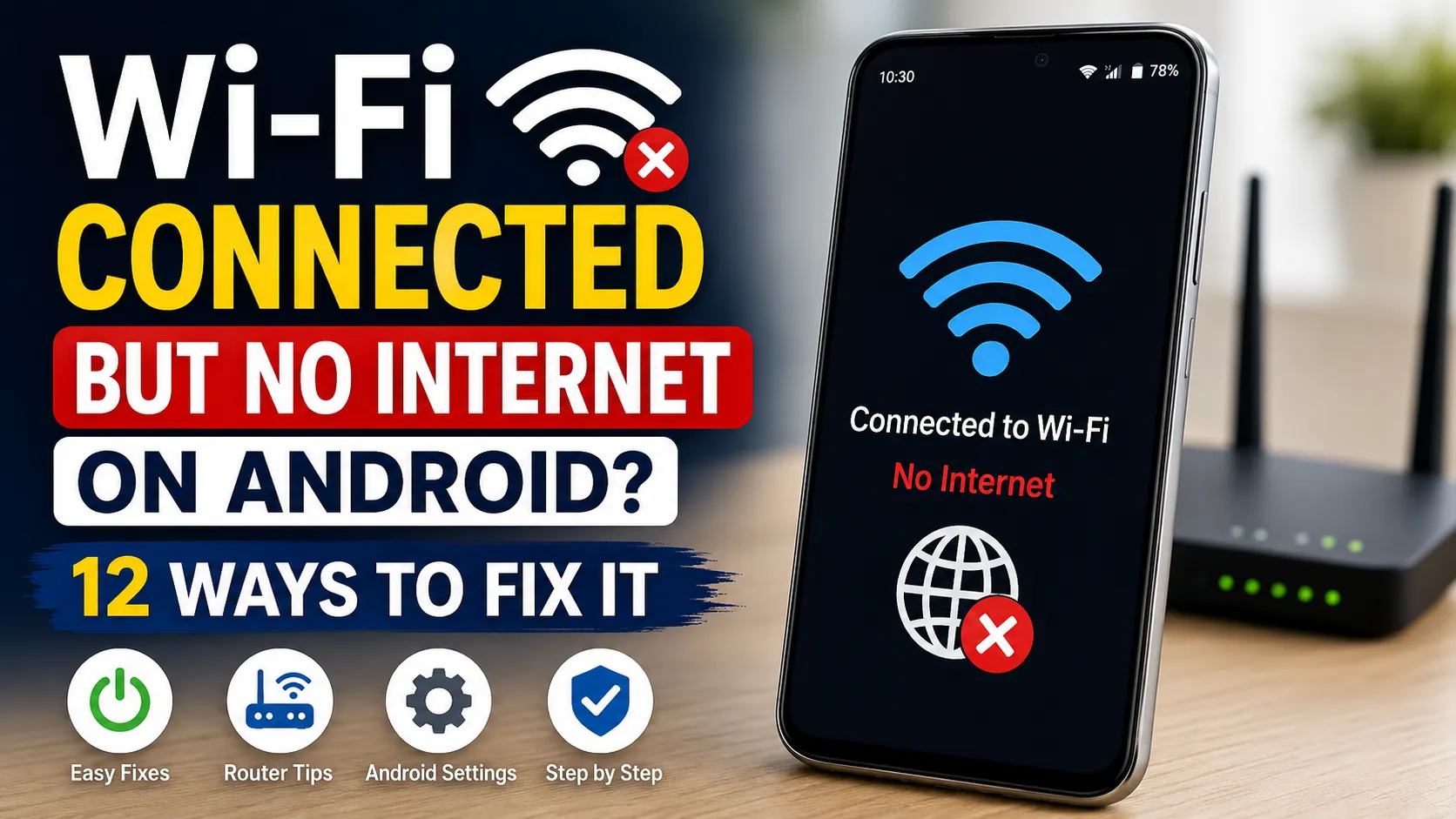
Your Android phone says it is connected to Wi-Fi, but websites won’t load, apps show network errors, or you keep seeing a “No internet” message.
This problem can be frustrating because the Wi-Fi icon may look completely normal even though your phone cannot actually access the internet.
The cause could be your phone, router, internet connection, DNS settings, VPN, saved Wi-Fi configuration, or even an outage from your internet service provider.
In this guide, we’ll show you how to fix Wi-Fi connected but no internet on Android, starting with the simplest solutions before moving to more advanced troubleshooting.
Quick Fixes for Wi-Fi Connected but No Internet on Android
| Problem | What to Try |
|---|---|
| Temporary connection issue | Turn Wi-Fi off and back on |
| Phone network glitch | Restart the Android phone |
| Router problem | Restart the router |
| Only one Wi-Fi network fails | Forget and reconnect to the network |
| VPN causing problems | Temporarily disconnect the VPN |
| DNS problem | Check Private DNS settings |
| Multiple devices have no internet | Check router/ISP connection |
1. Check Whether the Internet Is Actually Working
Before changing settings on your Android phone, find out whether the problem is limited to your phone.
Connect another device to the same Wi-Fi network, such as:
- Another smartphone
- A laptop
- A tablet
- A smart TV
Try opening a few websites or internet-connected apps.
If other devices also cannot access the internet, the problem is probably with your router, modem, or internet service rather than your Android phone.
If every other device works normally but your Android phone doesn’t, continue with the steps below.
2. Turn Wi-Fi Off and Back On
Start with the simplest fix.
Turn Wi-Fi off on your Android phone, wait several seconds, and turn it back on.
You can usually do this from the Quick Settings panel or through:
Settings → Network & Internet / Connections → Wi-Fi
The exact menu name varies between Android manufacturers.
Reconnect to your Wi-Fi network and test the internet again.
3. Restart Your Android Phone
A temporary software or network-process problem can sometimes prevent an otherwise normal Wi-Fi connection from accessing the internet.
Restart your phone normally.
After it starts again:
- Connect to Wi-Fi.
- Wait a few seconds.
- Open your browser.
- Try loading more than one website.
If the internet works again, the problem was likely temporary.
4. Restart Your Router and Modem
If the problem affects several devices, restart your networking equipment.
Use the manufacturer’s normal restart procedure. For many home setups, this involves safely disconnecting power, waiting briefly, reconnecting the equipment, and allowing it enough time to fully reconnect to your internet service.
Don’t repeatedly press a router’s small Reset button unless you specifically intend to factory-reset the router.
Restarting and factory resetting a router are not the same thing.
5. Forget the Wi-Fi Network and Reconnect
Your Android phone stores information about previously connected Wi-Fi networks.
If the saved network configuration has become problematic, forgetting and reconnecting to the network can help.
On many Android phones, you can go to:
Settings → Wi-Fi → Select your network → Forget
Then select the network again and enter the Wi-Fi password.
Important: Make sure you know the correct Wi-Fi password before forgetting the network.
6. Turn Airplane Mode On and Off
Airplane Mode provides another quick way to reset your phone’s wireless connections.
Turn Airplane Mode on, wait several seconds, and then turn it off.
Reconnect to Wi-Fi and test your connection.
This is a simple troubleshooting step and won’t delete your saved Wi-Fi networks.
7. Disable Your VPN Temporarily
If you use a VPN, temporarily disconnect it and test your internet connection again.
A VPN configuration, unavailable VPN server, or app problem can sometimes make it appear that Wi-Fi itself isn’t working.
If the internet starts working immediately after disconnecting the VPN, investigate the VPN app before changing your router or Android network settings.
You may need to:
- Connect to another VPN server
- Restart the VPN app
- Update the VPN app
- Check its network settings
8. Check Android Private DNS Settings
Android supports Private DNS, which can affect how your phone resolves website and service addresses.
Google provides additional guidance for managing network and internet settings in its Android Help documentation.
If you manually configured a Private DNS provider and that provider becomes unavailable or the hostname is incorrect, some internet services may stop working.
The location varies by device, but on many Android phones it can be found around:
Settings → Network & Internet → Private DNS
If you previously entered a custom Private DNS provider, temporarily return the setting to Automatic and test your connection.
Don’t randomly enter DNS hostnames from unknown websites.
9. Check Date and Time Settings
An incorrect date or time can sometimes cause problems with secure internet connections and apps.
Open your Android date and time settings and make sure automatic time and time-zone options are enabled where appropriate.
Then reconnect to Wi-Fi and test again.
10. Check for a Captive Portal or Sign-In Page
Public Wi-Fi networks in hotels, airports, cafés, hospitals, universities, and shopping centres may require you to sign in or accept terms before internet access is enabled.
Your phone can therefore show that it is connected to Wi-Fi while internet access remains unavailable.
Open a browser and check whether a network sign-in page appears.
Only enter personal information if you trust the network and understand who operates it.
11. Check for Android and App Updates
If the Wi-Fi problem began after a software issue or appears to affect particular apps, check for available system and app updates.
Android system-update menus vary by manufacturer, but you can usually find them in your phone’s Settings app.
Also update affected apps through Google Play.
If your Android phone is generally slow as well as having connection problems, read our guide on how to make a slow Android phone faster.
12. Reset Network Settings as a Last Resort
If none of the previous steps works and the problem only affects your phone, consider resetting its network settings.
The exact option and wording depend on your Android manufacturer and version.
It may appear under an area such as:
Settings → System / General Management → Reset options
Look for an option related to resetting Wi-Fi, mobile network, or Bluetooth settings.
Important Before Resetting Network Settings
A network reset can remove saved network information and other connectivity settings.
You may need to reconnect to Wi-Fi networks and reconfigure certain Bluetooth or mobile-network settings afterward.
For this reason, use network reset only after trying the simpler fixes above.
Wi-Fi Works on Other Devices but Not My Android Phone
If laptops, TVs, and other phones work normally on the same network, concentrate your troubleshooting on the Android device.
Try these steps in order:
- Turn Wi-Fi off and back on.
- Restart the phone.
- Forget and reconnect to the Wi-Fi network.
- Disable any VPN temporarily.
- Check Private DNS.
- Install available updates.
- Reset network settings only if necessary.
This avoids unnecessarily changing a router that is already providing working internet to other devices.
If you still have Wi-Fi connected but no internet on Android while other devices work normally, the issue is more likely related to your phone’s network configuration than the internet connection itself.
Wi-Fi Doesn’t Work on Any Device
If no device connected to your Wi-Fi can access the internet, focus on your network rather than the Android phone.
Check:
- Router/modem status lights
- Internet or WAN connection
- Loose network cables
- Whether the router has fully restarted
- Whether your internet provider is experiencing an outage
- Whether your internet account/service is active
If the connection remains unavailable, contact your internet service provider or network administrator.
Connected Without Internet After Changing Router Settings
If the problem started immediately after changing router settings, review the setting you changed rather than resetting everything at once.
Incorrect DNS, DHCP, access-control, filtering, or other network settings can prevent devices from reaching the internet.
If you don’t administer the network yourself, contact the person responsible for it.
Should You Factory Reset Your Android Phone?
Usually, no.
A factory reset is a major step that removes personal data and returns the phone to its initial state.
A Wi-Fi problem alone normally doesn’t justify immediately factory-resetting the entire device.
Try the targeted network troubleshooting methods in this guide first.
If you’re also dealing with storage problems or large amounts of temporary app data, you can read our guide on how to clear app cache on Android without losing data.
Frequently Asked Questions
Why does my Android say connected to Wi-Fi but no internet?
Your phone can establish a Wi-Fi connection to a router even when the router itself doesn’t have working internet access. Other possible causes include a temporary phone problem, VPN issue, DNS configuration, saved network problem, captive portal, or ISP outage.
Why does Wi-Fi work on other devices but not my phone?
If other devices work on the same network, the problem is more likely to involve your phone’s connection or configuration. Restart the phone, reconnect to the network, check VPN and Private DNS settings, and consider a network-settings reset only after simpler fixes fail.
Will forgetting a Wi-Fi network delete my phone data?
No. Forgetting a Wi-Fi network doesn’t delete your photos, apps, or personal files. However, it removes the saved connection information for that Wi-Fi network, so you’ll need its password to reconnect.
Will resetting network settings delete my photos?
A network-settings reset is different from a factory reset and is intended to reset connectivity-related settings. However, the exact behavior varies by Android manufacturer, so review the confirmation screen carefully before proceeding.
Can a VPN cause Wi-Fi to say no internet?
A malfunctioning VPN connection can prevent apps or websites from reaching the internet even while your phone remains connected to Wi-Fi. Temporarily disconnecting the VPN is a useful diagnostic step.
Should I change my DNS to fix Wi-Fi?
Not as your first step. Start with simpler troubleshooting such as restarting the connection and checking whether other devices have internet access. If you previously configured a custom Private DNS provider, returning it to Automatic can help determine whether DNS is causing the problem.
Why does public Wi-Fi connect but not work?
The network may require you to open a sign-in page, accept terms, or complete another authentication step before internet access is enabled.
When your Android phone is connected to Wi-Fi but has no internet, don’t immediately factory-reset your phone or start changing advanced router settings.
First determine whether the problem affects only your phone or every device on the network.
If only your Android phone is affected, restart the connection, restart the phone, forget and reconnect to Wi-Fi, check your VPN and Private DNS settings, and consider resetting network settings only if the simpler solutions fail.
If every device has lost internet access, concentrate on the router, modem, and internet service instead.
Working through these steps in order can help you identify the actual cause without unnecessarily deleting data or changing unrelated settings.