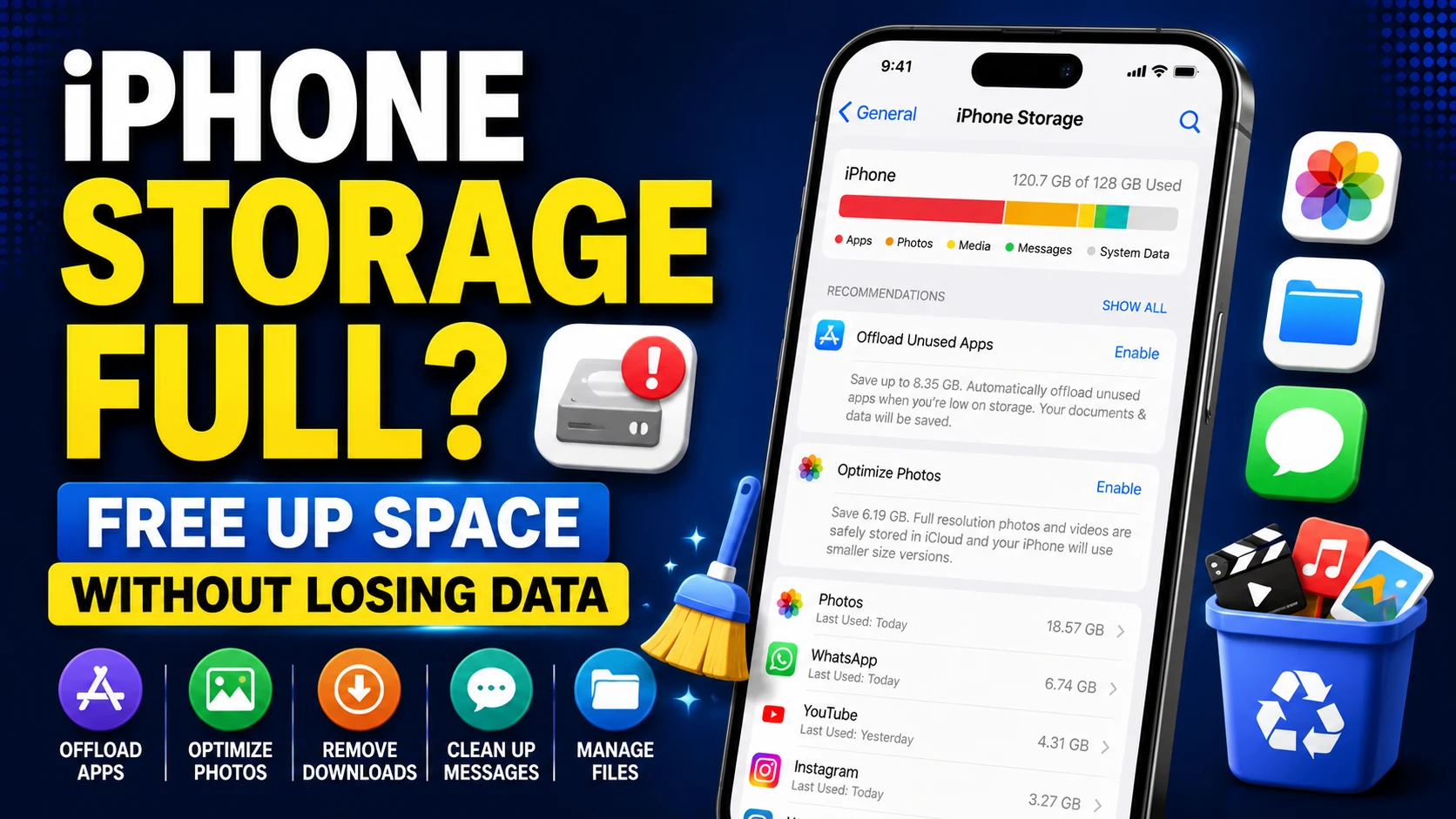
Is your iPhone storage almost full even though you don’t want to delete important photos, messages, apps, or other personal data?
A full iPhone can make it difficult to take new photos, download apps, install iOS updates, or save files. The good news is that you can often recover a significant amount of storage without deleting the data that matters to you.
In this guide, we’ll show you how to free up storage on iPhone safely by checking what’s using your space, offloading unused apps, optimizing photos, removing unnecessary downloads, and cleaning up other storage-heavy content.
Quick Ways to Free Up Storage on iPhone
| Method | What It Removes | Important Data Safe? |
|---|---|---|
| Offload unused apps | App itself | Yes, documents and data are retained |
| Optimize iPhone Storage | Reduces local photo storage | Yes, when correctly synced with iCloud Photos |
| Remove downloads | Offline media/files | Usually |
| Delete large attachments | Selected message attachments | Other messages remain |
| Remove offline maps | Downloaded map data | Yes |
| Clear Safari website data | History/site data | May sign you out of websites |
1. Check What’s Using Your iPhone Storage
Before deleting anything, find out what is actually consuming your storage.
Go to:
Settings → General → iPhone Storage
Your iPhone will display a storage bar along with a list of apps and the amount of space they use.
You may see categories such as:
- Apps
- Photos
- Messages
- Media
- iOS
- System Data
Look at the largest categories first. This helps you avoid randomly deleting files that aren’t causing the problem.
Your iPhone may also display storage recommendations that can help you recover space.
2. Offload Apps Instead of Deleting Them
One of the safest ways to free up storage is to offload apps you don’t use regularly.
Offloading is different from deleting an app. When you offload an app, iOS removes the app itself but keeps its documents and data.
To offload an app:
Settings → General → iPhone Storage → Select an App → Offload App
Confirm when prompted.
This is especially useful for large apps that you rarely use.
Offload App vs Delete App
Offload App: Removes the app but keeps its documents and data.
Delete App: Removes the app and its related data from the device.
If preserving your data is important, make sure you understand the difference before tapping Delete App.
3. Use Optimize iPhone Storage for Photos
Photos and videos can consume a large portion of an iPhone’s storage.
If you use iCloud Photos and have sufficient iCloud storage, Apple’s Optimize iPhone Storage feature can reduce the amount of device storage used by your photo library.
Go to:
Settings → Your Name → iCloud → Photos
Make sure Sync this iPhone is enabled and select the option to optimize iPhone storage.
With optimization enabled, full-resolution originals can be stored in iCloud while space-saving versions are kept on your iPhone when appropriate.
Important: Be Careful When Deleting iCloud Photos
iCloud Photos is a syncing service. If you delete a photo from your iPhone while iCloud Photos is enabled, that deletion can also sync to other devices using the same photo library.
Do not delete photos simply because you assume another copy will remain safely in iCloud.
4. Remove Unwanted Large Videos
Videos, particularly long or high-resolution recordings, can consume considerably more storage than ordinary photos.
Open the Photos app and review videos you genuinely no longer need.
Before permanently removing important videos, consider transferring them to a computer or another safe storage location.
Check Recently Deleted
Deleted photos and videos normally remain in Recently Deleted for a period before permanent deletion.
This gives you an opportunity to recover something deleted accidentally, but those items can continue occupying storage until permanently removed.
Only empty Recently Deleted after confirming that nothing important is inside.
5. Remove Downloaded Movies, Music and Podcasts
Streaming apps can quietly accumulate gigabytes of offline content.
Check your apps for:
- Downloaded movies
- TV episodes
- Music
- Podcasts
- Offline playlists
- Downloaded videos
If you can stream that content again later, removing the downloaded copy can recover storage without deleting your account or subscription.
6. Clean Up Large Message Attachments
Messages can consume substantial storage when conversations contain years of photos, videos, GIFs, and other attachments.
Before deleting entire conversations, look for large attachments you no longer need.
Keep important family photos, documents, and conversations, and remove only unnecessary content.
7. Remove Unnecessary Files and Downloads
Files downloaded through Safari, email, cloud-storage services, and other apps can remain on your iPhone long after you need them.
Open the Files app and review your downloads and locally stored files.
Look for:
- Old PDFs
- ZIP archives
- Large videos
- Duplicate documents
- Files you already saved somewhere else
If you’re uncertain whether a file exists somewhere else, back it up before deleting the local copy.
8. Clear Safari Website Data When Necessary
Safari stores website information to help websites load and function properly. Over time, this data can accumulate.
If Safari is using more storage than expected, you can review its history and website data through your iPhone settings.
Important: Clearing website data can sign you out of websites and remove certain saved site preferences.
You don’t need to clear Safari data every day. Consider it when Safari is consuming unusually large amounts of storage or when you’re troubleshooting a browser problem.
9. Check Social Media and Messaging Apps
Social-media and messaging apps can accumulate large amounts of cached media and downloaded files.
Go to:
Settings → General → iPhone Storage
Compare how much storage your frequently used apps consume.
Some apps provide their own storage-management controls. Where available, use those controls to remove unnecessary downloaded or cached content rather than immediately deleting the entire app.
Be especially careful with messaging apps if your chats, photos, or videos aren’t backed up.
10. Delete Offline Maps You No Longer Need
Offline maps are useful when travelling, but large downloaded areas can consume significant storage.
If you downloaded maps for an old trip and no longer need them offline, remove those downloads from the relevant maps app.
You can always download the area again before your next trip.
11. Review Large Apps Individually
Don’t assume the size of an app itself is the entire problem.
An app may be relatively small while its documents, downloads, and other data consume several gigabytes.
Go to:
Settings → General → iPhone Storage
Tap a large app and review the storage information shown for it.
Depending on the app, you may be able to remove downloaded content, offload the app, or manage its data from inside the app.
12. Restart Your iPhone After Cleaning Storage
After removing a substantial amount of unnecessary content, restart your iPhone.
Restarting isn’t a magic storage cleaner, and you shouldn’t expect it to suddenly recover many gigabytes. However, it’s a simple final step after completing your storage cleanup.
How Much Free Storage Should You Keep?
Avoid running your iPhone with virtually no free storage.
iOS needs working space for normal operations, temporary files, app installations, and software updates.
If your iPhone repeatedly becomes completely full, review your storage regularly rather than waiting until you receive another storage warning.
iPhone Storage vs iCloud Storage
This is one of the most common sources of confusion.
iPhone storage is the physical storage built into your phone.
iCloud storage is cloud storage associated with your Apple Account.
Buying more iCloud storage does not physically increase a 128 GB iPhone to 256 GB.
However, iCloud features such as iCloud Photos can help optimize how certain content is stored on your device.
What Should You Avoid Deleting?
When freeing storage, don’t rush to delete:
- Important photos or videos
- Work documents
- Family memories
- Authentication apps
- Important Messages conversations
- App data that isn’t backed up
- Files you cannot download again
Start with content that’s easy to recover, such as unused apps that can be offloaded, downloaded streaming content, old offline maps, and unnecessary downloads.
Do You Need an iPhone Cleaner App?
Usually, you don’t need a third-party cleaner app just to manage normal iPhone storage.
Start with Apple’s built-in iPhone Storage screen and the storage-management tools available inside your apps.
Be cautious with apps that promise to instantly “boost RAM,” dramatically speed up your iPhone, or automatically delete large amounts of data.
Always understand exactly what an app intends to delete before granting access to your photos, contacts, or other personal information.
Does Full Storage Make an iPhone Slow?
Very low available storage can contribute to problems because the system needs free space for normal operations.
If your iPhone is also experiencing unusually fast battery drain, read our guide: iPhone Battery Draining Fast? 12 Ways to Make It Last Longer.
Frequently Asked Questions
How do I free up storage on my iPhone without deleting photos?
Start by offloading unused apps, removing downloaded movies or music, deleting unnecessary offline files, and reviewing large app downloads. If you use iCloud Photos, Optimize iPhone Storage can also reduce local photo-storage requirements.
Does offloading an app delete my data?
Offloading removes the app itself while keeping its documents and data. This is different from deleting an app and can be useful when you need temporary storage space.
Will buying iCloud storage give my iPhone more storage?
No. iCloud storage and the physical storage built into your iPhone are different. However, iCloud services can help optimize how certain content is stored on your device.
Can I delete photos from my iPhone but keep them in iCloud?
Be careful. When iCloud Photos is enabled, changes to your photo library—including deletions—can sync across devices. Don’t delete photos assuming the originals will automatically remain untouched in iCloud.
Why is my iPhone storage still full after deleting photos?
Deleted photos and videos may remain in Recently Deleted temporarily. Apps, downloads, Messages attachments, and other content may also be consuming more space than expected. Check Settings → General → iPhone Storage to identify the largest categories.
Should I clear my iPhone cache every day?
No. Routine daily cache clearing is generally unnecessary. Focus on actual storage-heavy content and use an app’s built-in storage-management features where available.
Final Thoughts
You don’t need to start deleting important memories just because your iPhone storage is full.
Begin with Settings → General → iPhone Storage and identify what’s actually consuming space.
Offloading unused apps, optimizing photo storage, removing old downloads, reviewing large attachments, and cleaning up offline media can recover useful storage while protecting important data.
The key is to remove recoverable or unnecessary content first and treat important photos, documents, and app data carefully.